To block internet access for one Mac app without disabling Wi-Fi, use a per-app outbound firewall. Add the application, set its default policy to Deny, restart it under the firewall, and verify that connection attempts are blocked while another app can still reach the internet.
macOS gives you several network tools, but they solve different problems. The key distinction is whether you want to protect your Mac from incoming connections, block a known hostname, write low-level packet rules, or control a specific signed application and the helpers it launches.
Can the built-in Mac firewall block one app’s internet access?
Not in the way most people mean by this question. Apple’s built-in firewall is documented around protecting the Mac from network access and configuring incoming connections. It can allow or deny incoming access for an app, but that is not the same as stopping the app from opening outbound connections to remote services.
If your goal is “let this application run, but do not let it contact the internet,” you need per-application outbound control or a more isolated environment such as a virtual machine.
Four ways to restrict a Mac app
1. Turn off Wi-Fi
This is reliable for the whole Mac, but not selective. Every app loses connectivity, and Ethernet or another interface may still be active. It is useful for a quick test, not an ongoing per-app rule.
2. Edit the hosts file
/etc/hosts can redirect exact hostnames, but it does
not identify an application. An app can contact another hostname,
use a raw IP address, or rely on encrypted DNS. Hosts-file changes
also affect every process on the Mac.
3. Write packet-filter rules
macOS includes the pf packet filter. It is powerful,
but packet rules are naturally expressed around interfaces,
addresses, ports, and protocols—not a friendly “this app and its
helper family” identity. A mistake can disrupt unrelated traffic,
and durable rules require careful maintenance.
4. Use a per-app outbound firewall
This is the closest match to the task. A per-app firewall observes an application’s connection attempts and applies Allow, Deny, or rule-based decisions to that app. Products differ in how they identify helpers, how broad their rules are, what they log, and whether they make their own network requests.
Blocking a main app process is not automatically the same as containing every possible action it can trigger. If the app asks an unrelated, already-running process to do work through unrestricted IPC, only VM or container isolation provides a stronger semantic boundary.
How to block an app with Faraday Cage
Faraday Cage is built around explicit selection. It does not begin by interrupting every unknown connection on your Mac. You choose the app that belongs in a Cage.
-
Add the app. Open Faraday Cage, choose Add App,
and select the application bundle from
/Applications. You can also drag an app into the window. - Choose Deny all as the default. Unmatched requests will be denied unless a saved allow rule applies. This is the clearest starting point when the goal is to keep the app offline.
- Restart the app under Cage admission. Existing connections must close before a firewall can honestly describe the process as protected. The current development architecture also validates process identity at execution time.
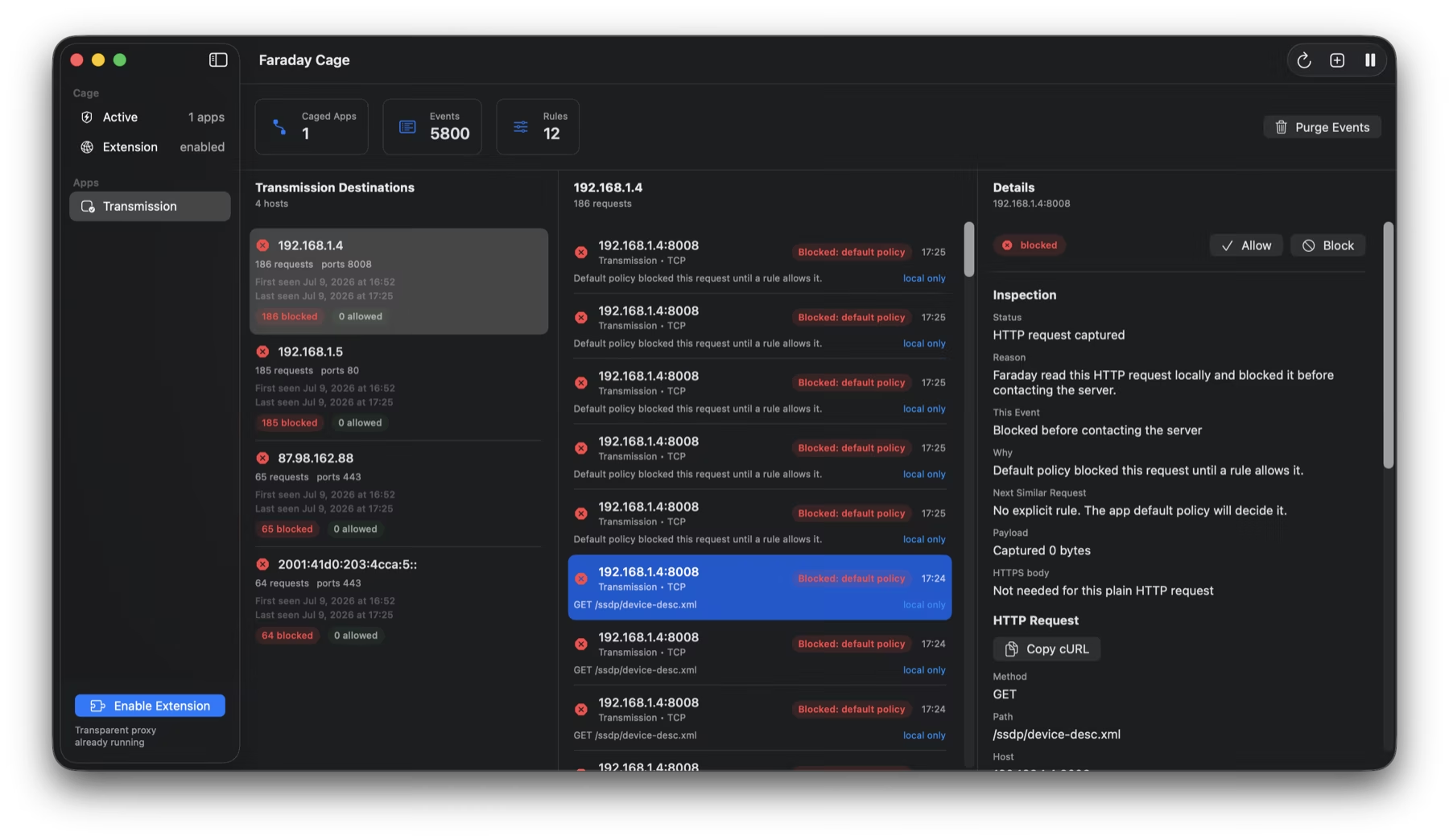
- Generate the activity you want to test. Use the app normally. Faraday groups observed destinations and records the local policy decision.
- Add narrow exceptions only if needed. Allow a specific host, endpoint, path, or supported request pattern instead of switching the entire application to Allow.
How to verify that the app is really offline
Do not rely only on an icon that says “blocked.” Use a short acceptance test:
- Confirm another app can still load a new web page, proving Wi-Fi is still available.
- Trigger a network action in the caged app and confirm it fails or remains pending.
- Check that Faraday records a denied decision for the expected destination and transport.
- Quit and relaunch the caged app, then repeat the test so an old connection cannot explain the result.
- If the app launches helpers, check that their activity is attributed to the same Cage.
What this does not guarantee
A per-app firewall is not a virtual machine. macOS system extensions can observe and control supported network flows, but arbitrary semantic causality through an unrelated already-running process is outside Faraday’s stated containment boundary. The current build’s full TCP/UDP guard plane is also still awaiting signed runtime and reboot acceptance.
Interactive Ask has transport limits: supported TCP requests can wait for a decision, while UDP, DNS, and QUIC are denied unless a persistent allow rule matches. That difference matters if an app depends on real-time datagrams.
Block one app, not the whole Mac.
Faraday Cage is in private beta while the signed build completes runtime acceptance.
Request early access ↗